
📊 Stream Dashboard – Real-Time Monitoring Panel
📘 Overview
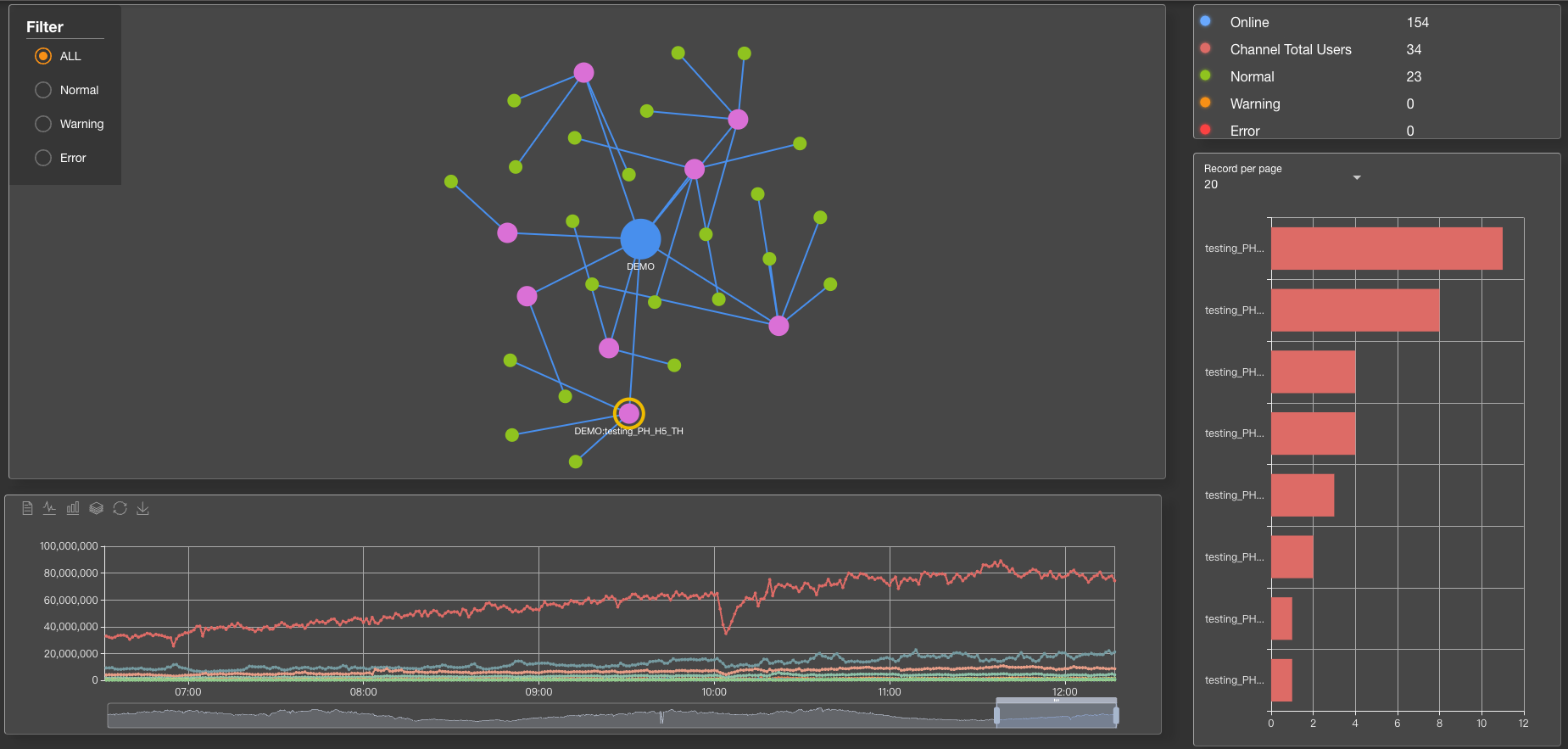
The Stream Dashboard offers a real-time visual interface for monitoring streaming channels and node performance.
It helps you quickly assess channel usage and connection quality across routes.
🧭 Feature Description
- Node data is updated every minute to reflect real-time streaming status.
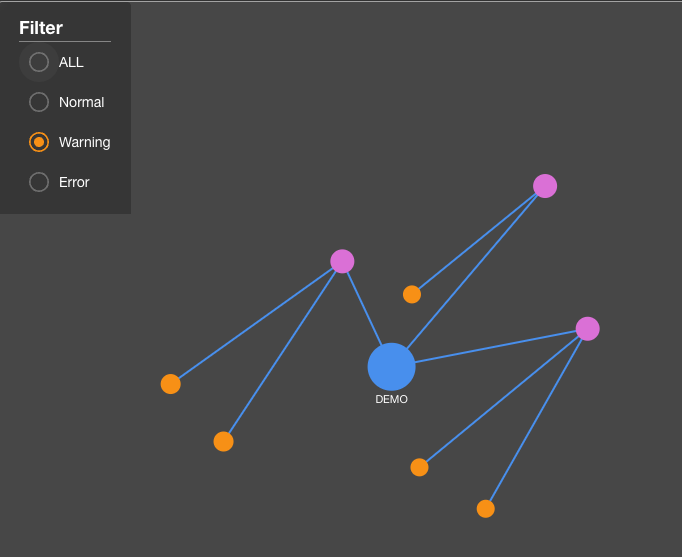
Pink dots represent Channels, and the connected dots beneath represent Route Nodes. Node colors indicate their current health state.
Channel list is auto-sorted by user count to help you identify active channels at a glance.
Click on any user bar to jump directly to the corresponding Channel Info page.
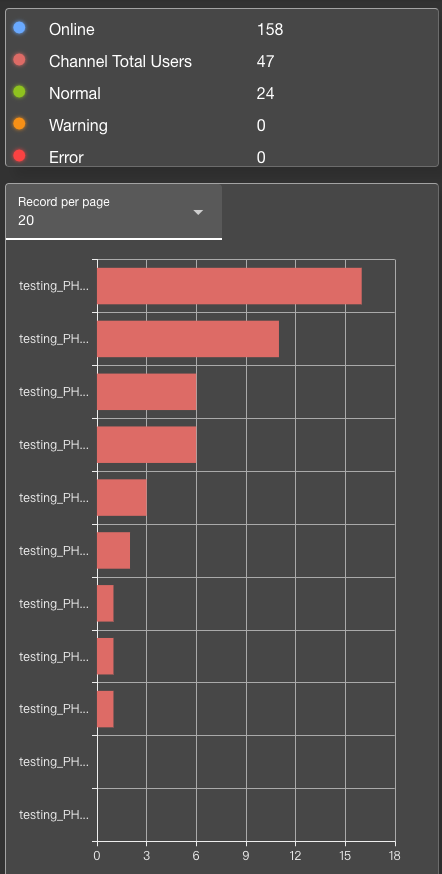
The status panel displays three core connection metrics:
🔵 Online
Total number of users currently connected to the JBL system via WebSocket (Socket Connect).🟠 Channel Total Users
Number of users currently inside any streaming channel.
This is a subset of Online, filtered to include only users who have joined a channel.
📌 In short:
Channel Total Users ⊆ Online — not all connected users are inside a channel.
💡 Usage Tips
Use the filtering options to isolate nodes in Warning (🟠 orange) or Error (🔴 red) status for troubleshooting.
Identify abnormal nodes with frequent switching or high latency.
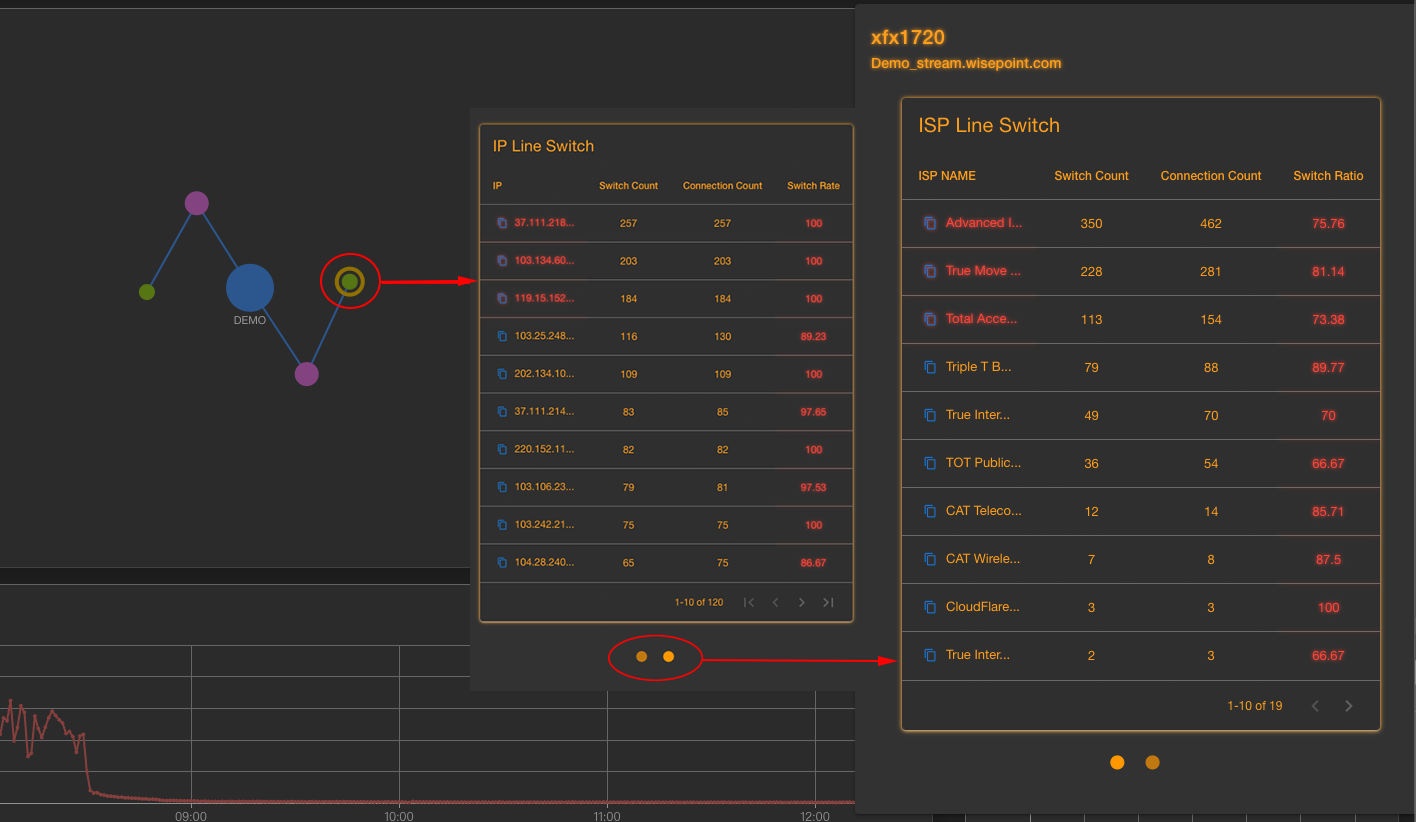
Click on any node to reveal its ISP/IP switch frequency table.
Use this data to determine whether switching issues are caused by specific IPs or unstable ISPs.
🔄 Line Switch Metrics
This table helps evaluate the frequency of route switching across ISPs in streaming channels, enabling detection of unstable lines or frequent rerouting issues.
| Metric | Description |
|---|---|
| Switch Count | Number of times the ISP or IP switched routes during streaming (e.g., from Line1 to Line2). |
| Connection Count | Total streaming connections made by the ISP/IP (regardless of switching). |
| Switch Rate | Calculated as Switch Count / Connection Count. A higher value indicates instability or frequent rerouting. |
📌 Use Switch Rate to identify unreliable ISPs or routes and optimize your CDN routing logic accordingly.